
Part 1: Quick Start Guide (The 5-Minute Setup)
Get your website translated and global in just 5 minutes with this quick start guide. Learn how to set up Lovalingo for your Lovable, Bolt, or React/Next.js site, including basic installation and SEO configuration. Reach a global audience in over 20 languages, with your first language free.
Have you ever built a site with Lovable, Bolt, or any React/Next.js tool? You can now reach a global audience in over 20 languages. And the best part? Your first language is completely free.
This guide walks you through the complete setup in two parts: Basic Installation and SEO Configuration.
What You Need
Before starting, make sure you have:
Your website built with Lovable, Bolt, v0, Base44, or Claude Code
A lovalingo account (free to start)
Google Search Console access (for SEO indexing)
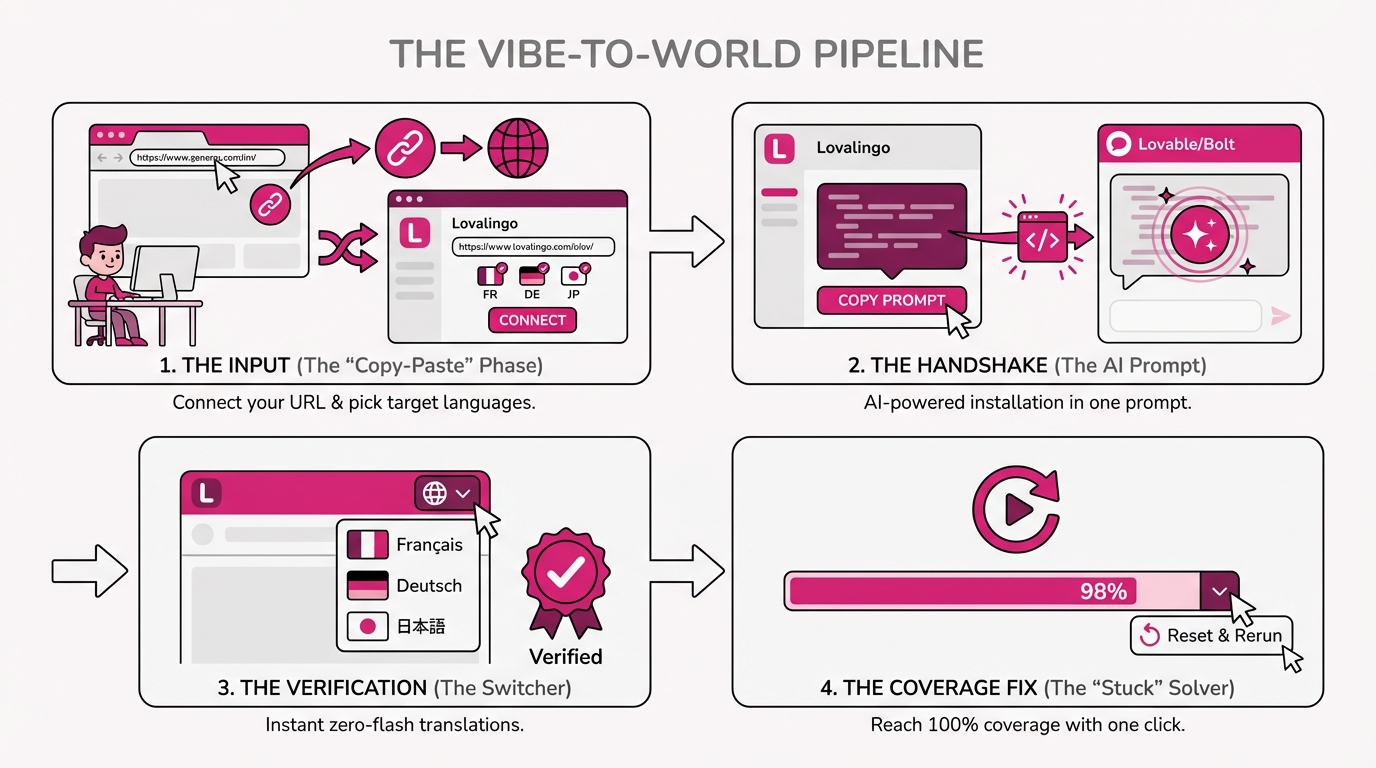
Part 1: Basic Installation
Step 1: Go to lovalingo.com and click Start for Free.
Step 2: Sign up and verify your email when prompted.
Step 3: Copy and paste your website URL (either the domain connected to your Lovable project URL or simply your Lovable project URL).

Step 4: Press Continue.
Step 5: Select your source language. This is the language your site is currently written in (e.g., English).
Step 6: Select the languages you want to translate into (e.g., French, German, Chinese).
Step 7: Choose your vibe coding tool (Lovable, Bolt, v0, etc.).
Step 8: Copy the installation prompt.
Step 9: Go to your vibe coding tool (e.g., Lovable), paste the prompt, and run it.
Step 10: Once complete, click Publish/Update to deploy your changes.
Step 11: Wait about a minute, then go back to Lovalingo and click "Continue to verify" if there is the language switcher.
Your site is now being translated! Translations can take up to 24h to complete after pages are discovered.

Step 12: Reach 100% Translation Coverage
Sometimes, you might notice that 24hours after your initial setup, your translation coverage progress bar seems "stuck" (for example, at 95% or 98%). This happens when the AI crawler hasn't triggered the detection for specific dynamic components or rare routes.
How to fix stuck coverage:
Step 12.1: Identify the gaps - Go to your Dashboard, visit the Pages tab and look at the project's coverage column.
Step 12.2: View details - Click on the small dropdown menu next to the language that isn't reaching 100%. This will show you exactly which pages or strings are still pending.
Step 12.3: Manual Trigger - Visit the live URL of the "stuck" page in your browser. This often forces the Lovalingo script to detect and send the missing strings to the translation queue.
Step 12.4: Reset & Rerun - If the coverage still doesn't budge, use the "Reset and Rerun this Locale" option in the dropdown menu. This clears the cache for that specific language and forces a fresh, comprehensive scan of your entire site.
Pro Tip: Always wait a few minutes after a "Reset & Rerun" before checking again. Our AI needs a moment to re-process your components and ensure everything is pixel-perfect in the target language.