
How to Add Multiple Languages to Your Next.js App (Without the Headache)
Implementing multiple languages in Next.js can be a chore, especially with recent changes to React. This guide offers a simplified approach using Lovalingo, covering setup, configuration, and SEO best
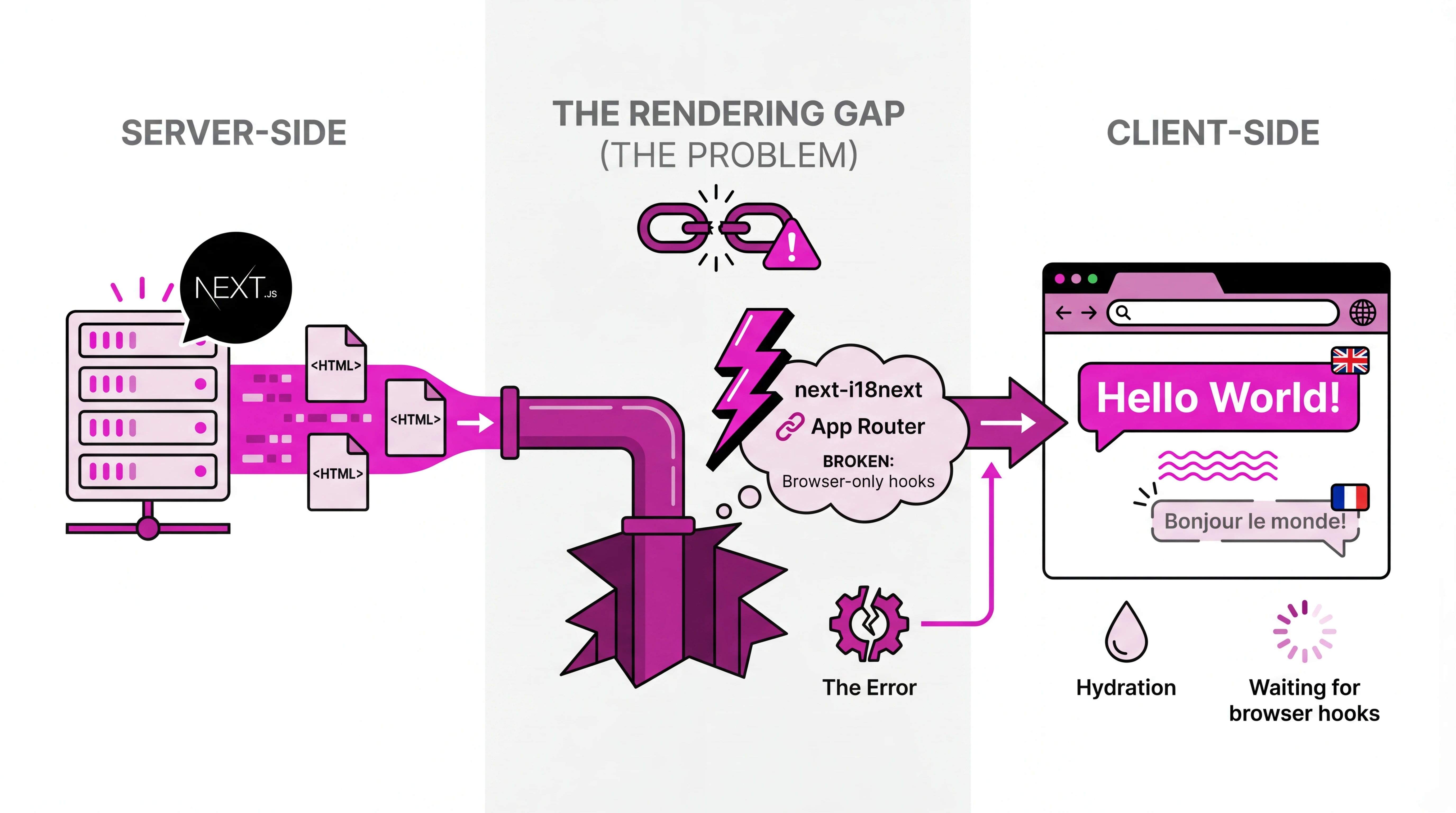
If you've ever tried to make your Next.js app work in multiple languages, you know it can get complicated fast. Translation files everywhere, weird configuration issues, and that annoying flash of English text before the translated version loads.
This guide walks you through a simpler approach. We'll cover everything from basic setup to SEO, written so you can follow along even if you're relatively new to Next.js.
Reading time: About 6 minutes
Why Is This Even Hard?
Let me explain the problem first.
Next.js 14 changed how React apps work. Most of your components now run on the server, not in the browser. This is great for performance, but it broke most translation libraries.
The popular ones—like next-i18next—were built before these changes. They expect your code to run in the browser. When you try to use them with the new App Router, things get messy.
You end up with:
Errors about "hooks can't be used in Server Components"
A flash of untranslated text when pages load
Complicated workarounds that make your code harder to maintain
There's a better way.
The Simple Setup
lovalingo was built specifically for the new Next.js. Here's how to set it up.
Step 1: Install the package
Open your terminal and run:
npm install @aixyte/lovalingo
Step 2: Wrap your app
Open your root layout file (app/layout.tsx) and add the provider:
import { LovalingoProvider } from '@aixyte/lovalingo';

export default function RootLayout({ children }) {
  return (
    <html>
      <body>
        <LovalingoProvider
          publicAnonKey={process.env.NEXT_PUBLIC_LOVALINGO_API_KEY}
          locales={["en", "de", "es", "fr"]}
        >
          {children}
        </LovalingoProvider>
      </body>
    </html>
  );
}
Step 3: Add your public anon key
Create a file called .env.local in your project root:
NEXT_PUBLIC_LOVALINGO_API_KEY=your_public_anon_key_here
You can get a free public anon key at lovalingo.com/auth.
That's it. Your app now supports multiple languages.
How Does It Actually Work?
Here's what happens behind the scenes.
When someone visits your site, lovalingo looks at all the text in your components. It detects what needs translation and handles it automatically.
So if you have a simple page like this:
export default function HomePage() {
  return (
    <main>
      <h1>Welcome to Our App</h1>
      <p>We help developers build faster.</p>
    </main>
  );
}
A French visitor sees:
Bienvenue sur notre application
Nous aidons les développeurs à construire plus rapidement.
You didn't have to create translation files. You didn't have to wrap each string in a special function. It just works.
Choosing How URLs Should Look
You have two options for handling language in your URLs. Pick the one that fits your project.
Option A: Language in the URL Path
This is best for public websites, blogs, and anything where SEO matters.
Your URLs look like this:
yourapp.com/pricing(English)yourapp.com/de/pricing(German)yourapp.com/es/pricing(Spanish)
To enable this, set routing="path" in your provider:
<LovalingoProvider
  routing="path"
  locales={["en", "de", "es", "fr"]}
>
Why choose this? Search engines can index each language separately. Users can share links in their language. It's the professional approach for public sites.
Option B: Same URL, Language Stored Locally
This works better for dashboards, admin panels, and apps behind a login.
Your URLs remain the same across languages. The user's preference is saved in their browser.
<LovalingoProvider
  routing="auto"
  locales={["en", "de", "es", "fr"]}
>
Why choose this? Cleaner URLs. No routing complexity. Users keep their language preference across sessions.
What About Forms and Interactive Stuff?
Most of your components will translate automatically. But sometimes you need to translate text that appears dynamically—like a success message after submitting a form.
For those cases, use the translation hook:
'use client';

import { useState } from 'react';
import { useLovalingoTranslate } from '@aixyte/lovalingo';

export function ContactForm() {
  const { translate } = useLovalingoTranslate();
  const [message, setMessage] = useState('');

  const handleSubmit = async (e) => {
    e.preventDefault();

    // This text appears after the form is submitted
    const successText = await translate("Thanks! We'll be in touch soon.");
    setMessage(successText);
  };

  return (
    <form
      <label>Your email</label>
      <input type="email" name="email" />

      <label>Your message</label>
      <textarea name="message" />

      <button type="submit">Send</button>

      {message && <p>{message}</p>}
    </form>
  );
}
Notice the 'use client' at the top. That tells Next.js this component runs in the browser, which is required when using hooks.
The labels ("Your email", "Your message", "Send") translate automatically. The success message uses the hook because it appears after user interaction.
Making Google Happy (SEO)
If you want your translated pages to show up in search results, you need a few things in place. lovalingo handles most of this for you.
Page Titles and Descriptions
When you define metadata in your pages, it gets translated automatically:
export const metadata = {
  title: 'About Our Company',
  description: 'Learn about our team and mission',
};

export default function AboutPage() {
  return <main>...</main>;
}
A German visitor sees translated metadata in their browser tab and in search results.
Telling Search Engines About Your Languages
Search engines need to know that your English and German pages are versions of the same content. This is done with something called hreflang tags.
lovalingo adds these to your pages automatically:
<link rel="alternate" hreflang="en" href="https://yourapp.com/about" />
<link rel="alternate" hreflang="de" href="https://yourapp.com/de/about" />
<link rel="alternate" hreflang="es" href="https://yourapp.com/es/about" />
You don't need to write this code. It happens behind the scenes when you use path-based routing.
Creating a Sitemap
A sitemap helps search engines find all your pages. Here's how to create one that includes all your languages:
// app/sitemap.ts
import { MetadataRoute } from 'next';

export default function sitemap(): MetadataRoute.Sitemap {
  const languages = ['en', 'de', 'es', 'fr'];
  const pages = ['', '/about', '/pricing', '/contact'];

  const entries = [];

  for (const page of pages) {
    for (const lang of languages) {
      entries.push({
        url: lang === 'en'
          ? `https://yourapp.com${page}`
          : `https://yourapp.com/${lang}${page}`,
        lastModified: new Date(),
      });
    }
  }

  return entries;
}
This creates entries for every page in every language.
Keeping Translations Consistent
Some words shouldn't be translated. Your brand name, technical terms like "React" or "API", and industry jargon often need to stay in English.
Other words need specific translations. Maybe your company uses "tableau de bord" for "dashboard" in French, not one of the other possible translations.
You can set these rules in the lovalingo dashboard. Add terms to your glossary, and they'll be handled consistently everywhere.
A Quick Note on Performance
You might wonder if all this translation slows down your site. Here's how lovalingo keeps things fast:
Caching: After the first load, translations are stored locally. Subsequent page views don't need to fetch them again.
Only what you need: Translations load per page. Visit the blog page? You get blog translations. Visit pricing? You get pricing translations. You never download translations for pages you haven't visited.
No content flash: Translations are applied before the page displays. Users never see English text flicker to French.
Before You Deploy
Run through this checklist:
[ ] Your public anon key is set in your production environment
[ ] The provider wraps your entire app in the root layout
[ ] You've tested each language manually
[ ] Page titles look correct in each language (view page source to check)
[ ] Your sitemap includes all language versions
Common Mistakes (And How to Avoid Them)
"I'm getting an error about hooks in Server Components"
You're probably using useLovalingoTranslate() in a component that runs on the server. Server Components don't need hooks—they translate automatically.
Only use the hook in Client Components (files that start with 'use client').
"My page title isn't translating"
Make sure you're using the static metadata export:
// This works
export const metadata = {
  title: 'My Page Title',
};
If you need dynamic metadata, use the server-side translate function instead.
Getting Started
Ready to make your Next.js app multilingual?
Sign up for free at lovalingo.com/auth
Install:
npm install @aixyte/lovalingoAdd the provider to your root layout
Deploy
The free tier gives you one target language with unlimited words. If you need more languages, paid plans start at $9/month.
Questions? Reach out at https://lovalingo.com/en/help/support